MenuList
Feature overviewSee what MenuList can do for your business.

Start

Menu importStart from the menu or service list you already have.Menu content prepDescriptions, images, and languages prepared for review.Featured ChoicesGuide customers to popular, quick, and value choices.

Publish

Official Business PageOne customer link for public business details.QR menu and linksShare the current approved list by QR or link.Print & digital assetsReady print files, social images, profile images, and covers.

Operate

AI Menu ManagerUpdate your menu by message. Important changes wait for your approval.Owner phone dashboardManage daily menu work from your phone.Activity viewSee visits, QR opens, searches, and customer actions.Business HealthSee what needs attention today.Menu quality checksCatch missing prices and details before publishing.Customer feedbackPrivate reports about wrong prices, missing items, and outdated details.Search & AI visibilityHelp customers and search tools understand your page.
Start from one approved listThese features keep your customer link, QR, page, and print materials pointing to the latest approved list.
Create customer link
AI Menu ManagerHow it worksMulti-locationPricing
Resources
MenuList ToolsMenu EngineeringQR Menu GuideDigital Menu vs PDFGoogle Menu GuideRestaurant Menu SEOAI Search & Menu DiscoveryOfficial customer linkAll Resources
LoginCreate customer link

QR menu and links

One current menu for QR scans, links, and customer shortcuts.

Create QR menus, stable share links, and saveable customer shortcuts from the same approved menu. Print files stay available when owners need physical placement.

Create customer link →See all features
Share previewCurrent menu

QR, public link, and shortcut open the same current menu

Customers scan, tap, or save the menu and keep reaching the latest approved version instead of old screenshots or forwarded PDFs.

QR menu
Public linkSaved shortcutPrint filesPackaging
QR menuPublic linkSaved shortcutPrint filesPackaging

Sharing journey

From one link to real customer places.

Keep every QR code and shared link connected to the current approved menu.

CreateGive customers one reliable way to open the current menu.Replace old filesStop sending customers stale screenshots and PDFs.PlacePut the current menu where customers already look.UpdateUpdate the menu instead of chasing every old copy.

Customer access

Create QR and link access from the menu.

Table QR, public menu link, and customer shortcut should all open the same current menu so owners do not manage several copies.

QRLinkShortcut

QR menu

Customers scan and open the current published menu.

Share link

WhatsApp, Instagram, packaging, and website links can use one menu link.

Phone shortcut

Repeat customers can keep the menu close on their phone.
Old-menu problem

Replace static menu copies.

Owners can share the current menu link through WhatsApp, Instagram, Google menu placement, packaging, and staff/customer messages.

Old PDFScreenshotBroken link

Current menu

The link points customers to the approved version.

Reusable link

Owners can keep sharing the same link instead of resending files.

Packaging ready

The same menu link can travel onto bags, labels, and handouts.

Real-world rollout

Use the same menu across physical and digital places.

If the menu changes, existing QR codes and links should keep resolving to the latest approved menu rather than becoming stale design files.

TablesSocialScreens

Print files

Cards and PDFs can start from the same approved menu.

Placement checklist

Owners can see which public placements still need setup or attention.

Approved menu

QR codes and shared files stay connected to the approved MenuList menu.

Ongoing consistency

Keep shared links useful after updates.

When the owner-approved menu changes, customers should keep arriving at the current public version.

CurrentApprovedReusable

One approved version

QR and links continue to represent the same public menu.

Customer actions

Call, WhatsApp, directions, and menu access stay close.

Customer shortcut

Saved access keeps repeat customers close to the same current menu.

Owner sharing screens

Use the same current menu in QR, links, and public sharing.

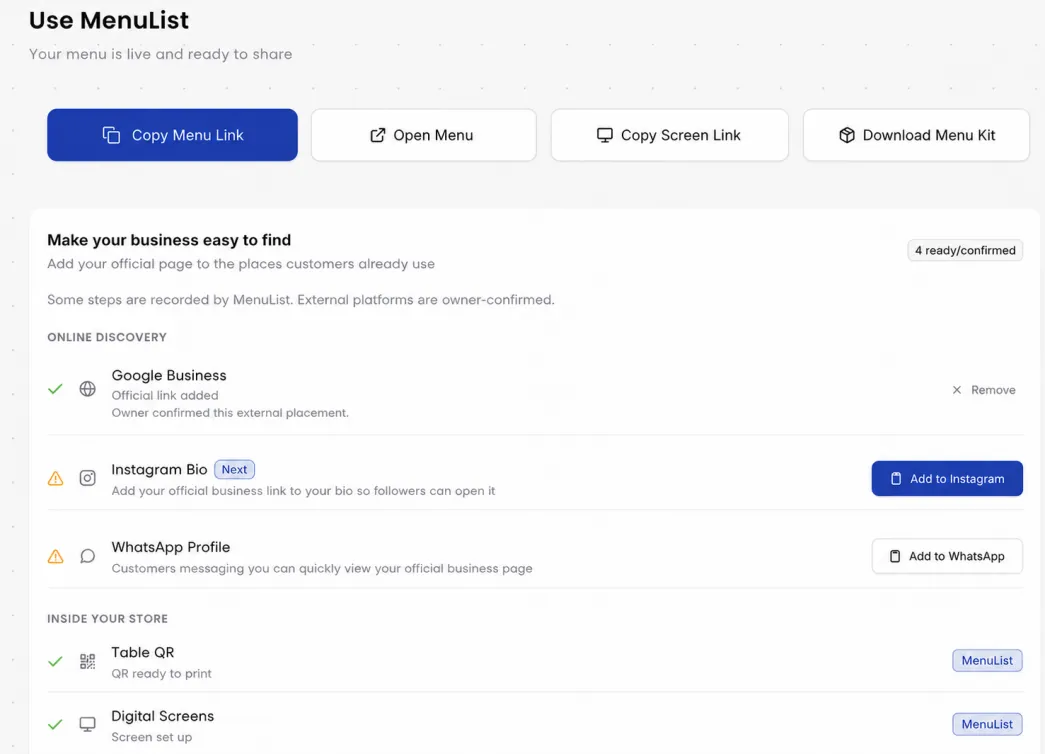
These captures show the real owner sharing screen and the customer menu reached from the public link. The promise stays simple: customers should land on the current approved menu.

Owner share screen

Copy links, QR assets, and placement tasks from one place

Owners can collect the public menu link, screen link, QR code, and placement checklist without hunting through separate tools.

MenuList owner sharing screen showing menu link, screen link, QR code, and placement checklist controls
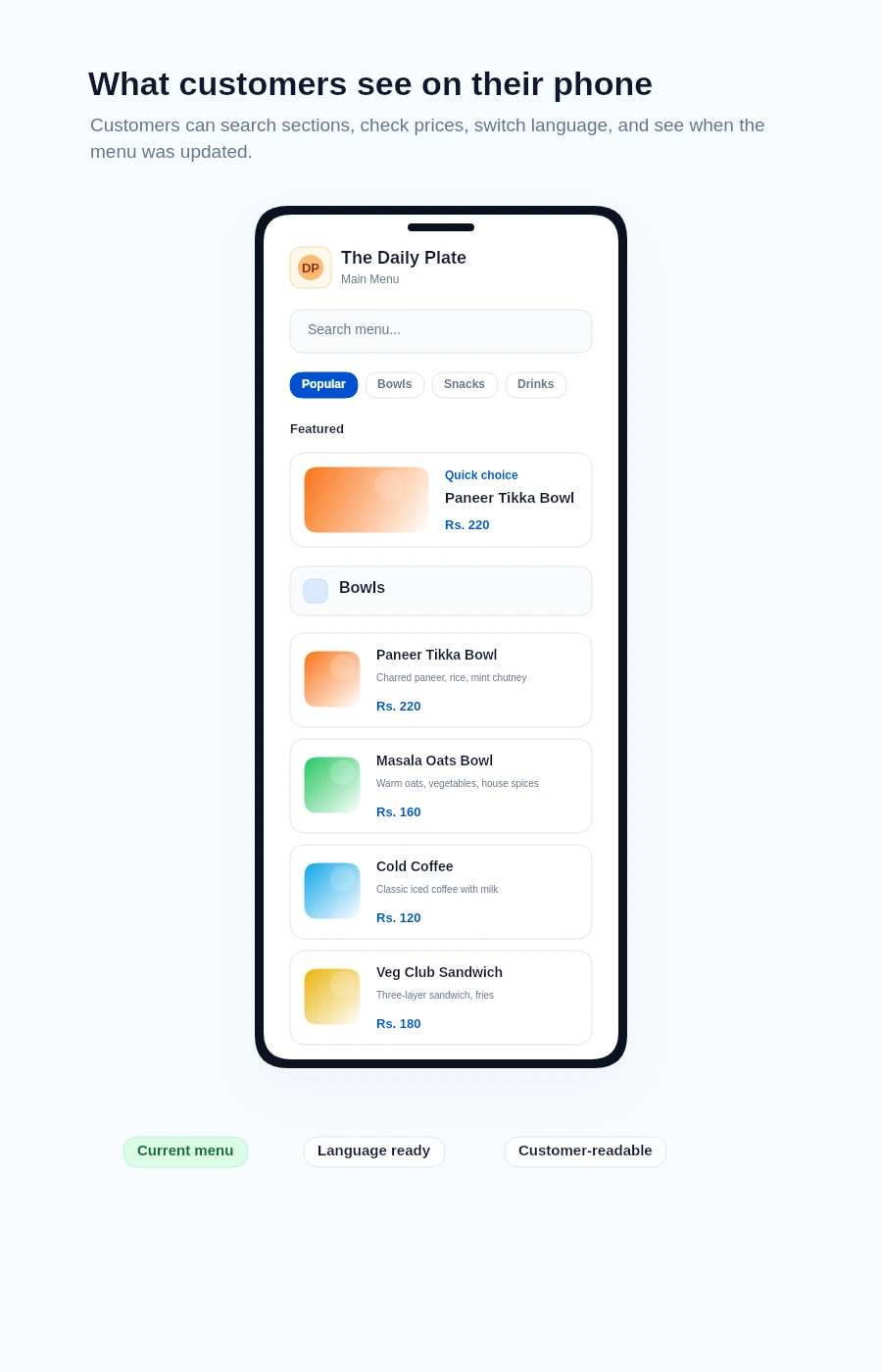
Customer menu

The shared link opens the customer menu

The public menu shows categories, item cards, descriptions, prices, and customer actions from the current published menu.

MenuList public customer menu showing categories, menu items, prices, and customer actions

What you get

Use the same menu link online and in print.

Share one current menu through QR codes, WhatsApp, social profiles, packaging, and printed material.

One link for the places customers use

Owners need one menu path that works on tables, social bios, WhatsApp, packaging, Google menu fields, and repeat-customer messages.

WhatsAppInstagramWebsite

Current menu, not static files

QR codes and shared links stay useful because they open the current approved MenuList menu.

QR placementPrint placementPublic link check

Consistency

Public materials should not become old menu copies.

QR codes and shared links keep sending customers to the menu you approved.

Same approved version

QR and share links can keep showing the current published menu.

Easier updates later

Owners update the menu instead of replacing every screenshot or PDF in circulation.

Saveable customer shortcut

Repeat customers can keep menu access close on their phone while MenuList keeps the menu current.

No separate QR system

MenuList keeps QR, link, and print assets connected to the same public menu.

Customer reach

Share the menu once. Keep it current.

Use one approved menu for the places customers already scan, open, save, and share.

Create customer link →Back to all features

Ready when your list is

Put one trusted customer link online.

Start from the menu, price list, catalogue, or service list you already have. MenuList prepares a private preview, then helps you use the approved customer link across QR, pages, and files.

Create customer link →See plans

Owner approval before publishing

The public menu or service list should come from the business, not from old PDFs or scattered screenshots.

One approved list

Customers keep reaching the current version instead of old PDFs, screenshots, or scattered links.

Simple for one location. Ready for many.

Start with one location. Add more without rebuilding how your menu and customer links work.

MenuList

The official customer-facing version of your business.

MenuList keeps its customer links, QR files, and print materials tied to your approved list.

MenuList is operated by Neelvara Systems, an India-based business. Neelvara Systems

hello@menulist.ai
LinkedIn

Product

  • AI Menu Manager
  • How it works
  • Features
  • Multi-location
  • Pricing

Start

  • Customer page example
  • Official Business Page
  • MenuList Tools
  • Create customer link
  • About
  • Contact

Resources

  • Developers
  • Menu Engineering
  • QR Menu for Restaurants
  • Digital Menu vs PDF
  • Google Business Profile Menu
  • Restaurant Menu SEO
  • AI Search & Menu Discovery
  • Official customer link
  • FAQ
  • Trust & Security

Legal

  • Data processing information
  • Report content abuse
  • Privacy Policy
  • Terms of Service
  • Refund Policy

Get an AI summary of MenuList:

CClaudeCChatGPTGGemini

© 2026 MenuList. All rights reserved.

One public link. Easy for customers to find.