MenuList
Feature overviewSee what MenuList can do for your business.

Start

Menu importStart from the menu or service list you already have.Menu content prepDescriptions, images, and languages prepared for review.Featured ChoicesGuide customers to popular, quick, and value choices.

Publish

Official Business PageOne customer link for public business details.QR menu and linksShare the current approved list by QR or link.Print & digital assetsReady print files, social images, profile images, and covers.

Operate

AI Menu ManagerUpdate your menu by message. Important changes wait for your approval.Owner phone dashboardManage daily menu work from your phone.Activity viewSee visits, QR opens, searches, and customer actions.Business HealthSee what needs attention today.Menu quality checksCatch missing prices and details before publishing.Customer feedbackPrivate reports about wrong prices, missing items, and outdated details.Search & AI visibilityHelp customers and search tools understand your page.
Start from one approved listThese features keep your customer link, QR, page, and print materials pointing to the latest approved list.
Create customer link
AI Menu ManagerHow it worksMulti-locationPricing
Resources
MenuList ToolsMenu EngineeringQR Menu GuideDigital Menu vs PDFGoogle Menu GuideRestaurant Menu SEOAI Search & Menu DiscoveryOfficial customer linkAll Resources
LoginCreate customer link

Print & digital assets

Put your current menu where customers look.

Turn your current menu into ready-to-download print files, social images, profile images, stories, and covers. Preview each file, then choose where to print or upload it.

Create customer link →See all features
AssetsPrint and digital files ready

Choose Print or Digital, preview the file, then download

MenuList adds your business name, logo, brand color, and current menu link, then keeps the same look across print and digital files. It does not publish or schedule posts.

Choose templatePick a ready look.
ClassicModernUtility
DigitalPreview first
Table tent and cardSame QR
One matching lookPDF or PNGOwner download
PrintDigitalPreview first
Print filesDigital imagesOne matching lookPDF or PNGOwner download

Placement journey

From your menu to ready files.

Choose Print or Digital, preview the exact file, then download it for the place you want to use it.

Pick assetChoose a print file or digital image.Choose templatePick a ready look.PreviewCheck the exact file before download.PlaceMove the approved menu into the places customers use.

Real-world assets

Choose what needs to be printed or shared.

Print and Digital stay separate so you can quickly find a table file, menu card, social image, profile image, story, status image, or page cover.

PrintDigitalMenu Kit

Table tent and card

Customers can scan from the table and reach the current menu.

Counter and entrance files

Stickers and posters help customers find the same current menu before they ask staff.

Feedback and menu files

Feedback QR and printable menu files start from the same approved menu.
Template choice

Choose a ready look instead of starting from scratch.

Pick a look and MenuList fills it with your menu and business details. Print files can be adjusted when needed.

ClassicModernUtility

One look across every file

Your chosen look carries across print and digital files without separate styling work.

Useful choices first

MenuList shows the most relevant looks first. You can still see every available choice.

Editing only where it helps

MenuList handles your business details, QR, and file sizes. Edit supported print details when needed; digital images stay ready to use.

Download confidence

Preview every print or digital file before download.

Preview the exact file. Download print pieces as available PDFs or images, and digital pieces as correctly sized PNGs.

PreviewPDFPNG

Clean preview

See the selected file clearly before you download it.

PDF or image downloads

Print files offer their available PDF or image formats. Digital images download at the size shown.

Edit print files when needed

Edit supported print files before download. Digital images stay at their intended size.

Customer reach

Put your current menu where customers already look.

Table cards, counter QR, entrance posters, printed menus, share images, profile images, stories, status images, and page covers can all point to the same approved menu.

In-storeOnlineFresh file

Same QR

Customers scanning printed material reach the current menu.

You choose where it goes

MenuList prepares the file. You choose the printer, social profile, message, or business page where it belongs.

Fresh exports

Owners can export new files after approved menu updates instead of redesigning from scratch.

Print and digital files

Choose Print or Digital. Preview the file. Download.

Print and digital files use the same business name, logo, colors, and menu link. Edit supported print files when needed; digital images are already sized for easy upload.

  • Print menuPDF
  • Table tentA5 fold
  • Menu share card1200 × 630 PNG
  • Profile image1080 × 1080 PNG
  • Story and status1080 × 1920 PNG
  • Page coversFacebook and LinkedIn
  • Complete menu kitPrint and digital files
Print file example

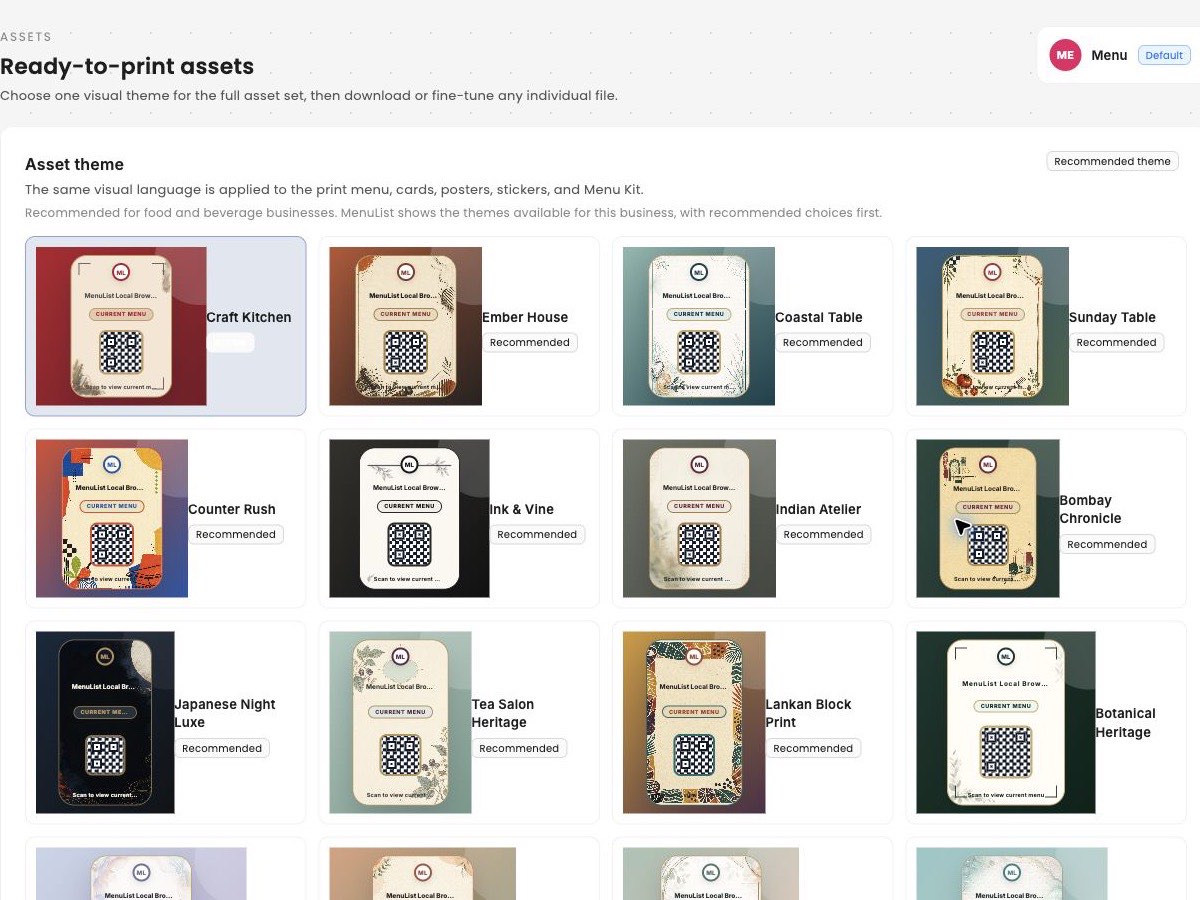
Finished print choices before customization

The Print view starts with ready files and matching looks instead of an empty design screen. Digital files use the same approved look.

MenuList Assets Print view showing ready print files and coordinated theme choices
Editor screen

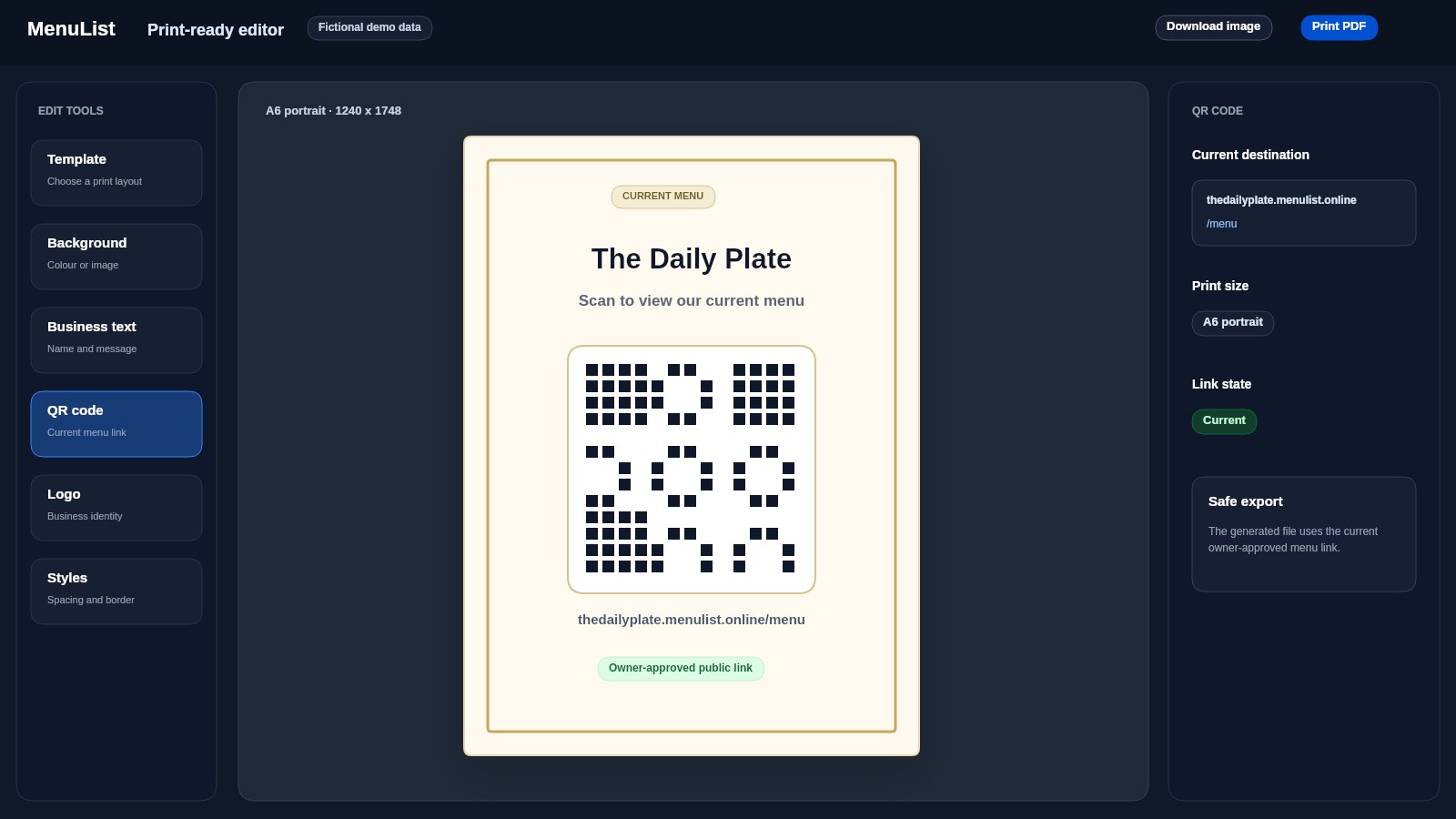
Easy editing for print files

Change the words, logo, or layout while MenuList keeps the QR area clear.

MenuList print asset editor showing a QR table card template with export buttons and editing panels

What you get

Ready files for the places your business already uses.

MenuList prepares the file. You preview it, download it, and choose where to print or upload it.

One recognizable look

Keep the same business look across QR cards, stickers, posters, PDFs, share images, profile images, stories, status images, and covers.

Brand colorLogo or initialsShort link

You decide where each file goes

MenuList does not connect social accounts, publish posts, or schedule campaigns. Preview the file, then choose where to print or upload it.

Print or downloadDownload and uploadPreview first

Owner confidence

Every file starts from your current menu.

Print QR codes lead to the current menu. Important logos and text stay in safe areas on digital images. You still choose where every file goes.

QR opens the current menu

When customers scan a printed card, sticker, or poster, they open the latest published MenuList menu instead of an old static file.

Add your business details

Include your business name, branch, logo when available, brand color, QR, and short link.

Download new files after menu changes

When the menu changes, download new files instead of redesigning each piece from scratch.

Edit print files when needed

Print files can open in the editor for practical changes. Digital images stay simple and correctly sized.

Place and share

Publish once, then download the files you need.

Start with your existing menu. MenuList prepares the customer link, print files, and correctly sized digital images. You choose where each file goes.

Create customer link →Back to all features

Ready when your list is

Put one trusted customer link online.

Start from the menu, price list, catalogue, or service list you already have. MenuList prepares a private preview, then helps you use the approved customer link across QR, pages, and files.

Create customer link →See plans

Owner approval before publishing

The public menu or service list should come from the business, not from old PDFs or scattered screenshots.

One approved list

Customers keep reaching the current version instead of old PDFs, screenshots, or scattered links.

Simple for one location. Ready for many.

Start with one location. Add more without rebuilding how your menu and customer links work.

MenuList

The official customer-facing version of your business.

MenuList keeps its customer links, QR files, and print materials tied to your approved list.

MenuList is operated by Neelvara Systems, an India-based business. Neelvara Systems

hello@menulist.ai
LinkedIn

Product

  • AI Menu Manager
  • How it works
  • Features
  • Multi-location
  • Pricing

Start

  • Customer page example
  • Official Business Page
  • MenuList Tools
  • Create customer link
  • About
  • Contact

Resources

  • Developers
  • Menu Engineering
  • QR Menu for Restaurants
  • Digital Menu vs PDF
  • Google Business Profile Menu
  • Restaurant Menu SEO
  • AI Search & Menu Discovery
  • Official customer link
  • FAQ
  • Trust & Security

Legal

  • Data processing information
  • Report content abuse
  • Privacy Policy
  • Terms of Service
  • Refund Policy

Get an AI summary of MenuList:

CClaudeCChatGPTGGemini

© 2026 MenuList. All rights reserved.

One public link. Easy for customers to find.